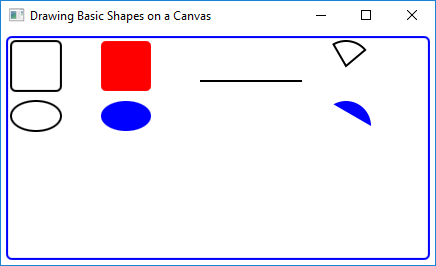
FxCanvasExample2.javaimport javafx.application.Application;
import javafx.scene.Scene;
import javafx.scene.canvas.Canvas;
import javafx.scene.canvas.GraphicsContext;
import javafx.scene.layout.Pane;
import javafx.scene.paint.Color;
import javafx.scene.shape.ArcType;
import javafx.stage.Stage;
public class FxCanvasExample2 extends Application
{
public static void main(String[] args)
{
Application.launch(args);
}
@Override
public void start(Stage stage)
{
// Create the Canvas with a width of 400 px and a height of 200 px.
Canvas canvas = new Canvas(400, 200);
// Get the graphics context of the canvas
GraphicsContext gc = canvas.getGraphicsContext2D();
// Set line width
gc.setLineWidth(2.0);
// Set fill color
gc.setFill(Color.RED);
// Draw a rounded Rectangle
gc.strokeRoundRect(10, 10, 50, 50, 10, 10);
// Draw a filled rounded Rectangle
gc.fillRoundRect(100, 10, 50, 50, 10, 10);
// Change the fill color
gc.setFill(Color.BLUE);
// Draw an Oval
gc.strokeOval(10, 70, 50, 30);
// Draw a filled Oval
gc.fillOval(100, 70, 50, 30);
// Draw a Line
gc.strokeLine(200, 50, 300, 50);
// Draw an Arc
gc.strokeArc(320, 10, 50, 50, 40, 80, ArcType.ROUND);
// Draw a filled Arc
gc.fillArc(320, 70, 50, 50, 00, 120, ArcType.OPEN);
// Create the Pane
Pane root = new Pane();
// Set the Style-properties of the Pane
root.setStyle("-fx-padding: 10;" +
"-fx-border-style: solid inside;" +
"-fx-border-width: 2;" +
"-fx-border-insets: 5;" +
"-fx-border-radius: 5;" +
"-fx-border-color: blue;");
// Add the Canvas to the Pane
root.getChildren().add(canvas);
// Create the Scene
Scene scene = new Scene(root);
// Add the Scene to the Stage
stage.setScene(scene);
// Set the Title of the Stage
stage.setTitle("Drawing Basic Shapes on a Canvas");
// Display the Stage
stage.show();
}
}
Maintained by John Loomis, updated Tue Jan 23 17:00:30 2018